Friday, July 25, 2014

Install MYOB on XenDesktop 7.5 in Azure on Server 2012 r2


Installing MYOB 19.10 in Azure Server Windows Server 2012 r2

clip_image002

Disable UAC via the registry, reboot

clip_image004

Install .NET 3.5

clip_image006

Just install the SERVER product for terminal services

clip_image008

Don’t just install it, do it via the old ‘add remove programs’

clip_image010

Install Application on Remote Desktop

clip_image012

Install

clip_image014

clip_image016

clip_image018

clip_image020

You may get stuck at this screen

clip_image022

If you do and hit cancel this is the error message

clip_image024

This is the workaround to this issue:

  1. Log on to the system with Administrative Privileges
  2. Open “Local Group Policy Editor” go to:
  3. Computer Configuration
  4. Administrative Templates
  5. Windows Components
  6. Remote Desktop Services
  7. Remote Desktop Session Host
  8. Application Compatibility
  9. In the right pane, right click on ‘Turn off Windows Installer RDS Compatibility” and select Edit from the drop down menu
  10. Select ‘Enable’
  11. Hit OK

Hat tip for this http://community.myob.com/t5/Installing-and-upgrading/Upgrade-to-2014-2-hanging/td-p/263121

clip_image026

Rerun this install and it will work fine.

clip_image028

Few more next next nexts, Finish to complete

clip_image030

Then if you are using XenDesktop 7.5 allocate the application to users.

clip_image032

clip_image034

clip_image036

Good to go.

List to MYOB Supported platforms http://myob.com.au/business/customer-service-support/support/new-microsoft-environments-page/microsoft-windows-8-1257830102169

Monday, July 21, 2014

How to install and use Citrix WebInterface 5.4 on Windows Server 2012 R2


Prepare your Windows Server 2012 r2

image

Install the following roles and features:

  • .NET Framework 3.5 Features
    • .NET Framework 3.5 (includes 2.0 and 3.0)

image

  • Web Server (IIS) with sub-components
  • Management Tools with sub-components
    • IIS 6 Management Compatibility
      IIS 6 Metabase Compatibility

image

Install Citrix WebInterface

  • install Microsoft Visual J# from the XenApp 6.5 installation media
  • Citrix WebInterface 5.4 from the XenApp installation media

After the installation is completed you can now open the Citrix WebInterface Management Console. At this point the installation will fail.

  • You can work around this issue by creating a text file named mmc.exe.config in %WinDir%\SYSWOW64 with this content:

<?xml version ="1.0"?>
<configuration>
        <startup>
                <requiredRuntime version="v2.0.50727"/>
                <supportedRuntime version="v2.0.50727"/>
        </startup>
</configuration>

  • Now in the Citrix WebInterface Management Console again and create the required sites

The file mmc.exe.config can cause issues with other tools, so remove it after you are done

  • Now correct the CitrixWebInterface5.4.0AppPool in IIS

If you try to access a new WebInterface site you will receive an error message about .NET complilation.

You can fix this for all sites on this server by changing the .NET Framework version for the Citrix application pool:

  1. Open Information Manager Service (IIS) Manager
  2. Open your server
  3. Open the Application Pools
  4. Edit Basic (or advanced) Settings on CitrixWebInterface5.4.0AppPool
  5. Chose .NET Framework Version v2.0.50727 (or Dot NET CRL 2.0 in advanced)

image

Thank you to Marcel Meurer, www.sepago.de/e/marcel/2012/09/25/how-to-install-and-use-citrix-webinterface-54-on-windows-server-2012 who I based this on.

Tuesday, July 01, 2014

PVS Target install silently


There are lots of issues with installing the target software via SCCM to build gold images. The command line needed is documented, but here is the right command line switch!

PVS_Device_x64.exe /s /v” /qn /norestart

The installation help file says nothing of this funny quote (“) but it is the secret source. Good luck.

Monday, June 30, 2014

Manually Install MSU or CAB files


An .msu file contains the following contents.

Content Description
Windows Update metadata Describes each update package that the .msu contains
One or more .cab files
Each .cab file represents one Windows update
An .xml file

This .xml file describes the .msu update package. Used for unattended installation of the update by using the Package Manager tool (Pkgmgr.exe).

A properties file
This file contains string properties that Wusa.exe uses. For example, this file contains the title of the associated article in the Microsoft Knowledge Base.


To install an .msu update package, run Wusa.exe together with the full path of the file.
EG: if the Windows6.3-KB999777.msu file is in the C:\999777 folder, type the following command at a command prompt to install the update package:

  • wusa.exe d:\999777\Windows6.3-KB999777.msu


If you want to expand it you can expand the .msu file to a temporary folder:

  • expand -f:* "C:\999777\Windows6.3-KB999777.msu" %TEMP%

Then, you type the following command at a command prompt:

  • pkgmgr.exe /n:%TEMP%\Windows6.3-KB999777.xml

OR if the package expands to a CAB file. You run the following commands to install the packages:

start /w Pkgmgr /ip /m:c:\temp\Windows6.3-KB999777-x86.cab

NOTE: Package Manager installs only the first cab found in a folder.


Source of this information: http://support.microsoft.com/kb/934307

Tuesday, June 24, 2014

Move SCVMM DB Server


If you have moved SCVMM 2012 r2 (or earlier) the only official way to change is to uninstall and reinstall. However in my case I have moved from a SQL instance on a standard server to a AllwaysOn instance on the same host.

Instead of uninstalling SCVMM 2012 just modify a database string – then restart the SCVMM service if you did not stop before..

You should stop the SCVMM Service and Agent Services.

Open RegEdit on the SCVMM 2012 server and navigate too: HKEY_LOCAL_MACHINE\SOFTWARE\Microsoft\Microsoft System Center Virtual Machine Manager Server\Settings\Sql

Under the SQL key, change all references to the old SQL Server, this includes the following sub-keys;

ConnectionString
DatabaseName
InstanceName
MachineFQDN
MachineName

Wednesday, June 04, 2014

Active Directory Forest and Domain Levels


Features that are available at domain functional levels

The following table shows the features that are available at each domain functional level.

Domain functional level

Available features

Supported domain controller operating systems

Windows 2000 native

All of the default AD DS features and the following directory features are available:

Universal groups for both distribution and security groups.

Group nesting

Group conversion, which allows conversion between security and distribution groups

Security identifier (SID) history.

Note In Windows Server 2008 R2, the Personal Virtual Desktop feature was introduced. It requires the Windows 2000 native domain functional level

Windows Server 2008 R2

Windows Server 2008

Windows Server 2003

Windows 2000

Windows Server 2003

All the default AD DS features, all the features that are available at the Windows 2000 native domain functional level, and the following features are available:

The domain management tool, Netdom.exe, which makes it possible for you to rename domain controllers

Logon time stamp updates
The lastLogonTimestamp attribute is updated with the last logon time of the user or computer. This attribute is replicated within the domain.

The ability to set the userPassword attribute as the effective password on inetOrgPerson and user objects

The ability to redirect Users and Computers containers. By default, two well-known containers are provided for housing computer and user accounts, namely, cn=Computers,<domain root> and cn=Users,<domain root>. This feature allows the definition of a new, well-known location for these accounts.

The ability for Authorisation Manager to store its authorisation policies in AD DS

Constrained delegation
Constrained delegation makes it possible for applications to take advantage of the secure delegation of user credentials by means of Kerberos-based authentication.
You can restrict delegation to specific destination services only.

Selective authentication
Selective authentication makes it is possible for you to specify the users and groups from a trusted forest who are allowed to authenticate to resource servers in a trusting forest.

Windows Server 2012 R2

Windows Server 2012

Windows Server 2008 R2

Windows Server 2008

Windows Server 2003

Windows Server 2008

All of the default AD DS features, all of the features from the Windows Server 2003 domain functional level, and the following features are available:

Distributed File System (DFS) replication support for the Windows Server 2003 System Volume (SYSVOL)

Last Interactive Logon Information
Fine-grained password policies
Personal Virtual Desktops

Windows Server 2012 R2

Windows Server 2012

Windows Server 2008 R2

Windows Server 2008

Windows Server 2008 R2

All default Active Directory features, all features from the Windows Server 2008 domain functional level, plus the following features:

Authentication mechanism assurance, which packages information about the type of logon method (smart card or user name/password) that is used to authenticate domain users inside each user’s Kerberos token. When this feature is enabled in a network environment that has deployed a federated identity management infrastructure, such as Active Directory Federation Services (AD FS), the information in the token can then be extracted whenever a user attempts to access any claims-aware application that has been developed to determine authorisation based on a user’s logon method.

Automatic SPN management for services running on a particular computer under the context of a Managed Service Account when the name or DNS host name of the machine account changes.

Windows Server 2012 R2

Windows Server 2012

Windows Server 2008 R2

Windows Server 2012

The KDC support for claims, compound authentication, and Kerberos armoring KDC administrative template policy has two settings (Always provide claims and Fail unarmored authentication requests) that require Windows Server 2012 domain functional level.

Windows Server 2012 R2

Windows Server 2012

Windows Server 2012 R2

DC-side protections for Protected Users. Protected Users authenticating to a Windows Server 2012 R2 domain can no longer:

Authenticate with NTLM authentication

Use DES or RC4 cipher suites in Kerberos pre-authentication

Be delegated with unconstrained or constrained delegation

Renew user tickets (TGTs) beyond the initial 4 hour lifetime

Authentication Policies (forest-based Active Directory)

Authentication Policy Silos

Windows Server 2012 R2


Features that are available at forest functional levels

The following table shows the features that are available at each forest functional level.

Forest functional level

Available features

Supported domain controllers

Windows 2000

All of the default AD DS features are available.

Windows Server 2008 R2

Windows Server 2008

Windows Server 2003

Windows 2000

Windows Server 2003

All of the default AD DS features, and the following features, are available:

Forest trust

Domain rename

Linked-value replication
(change group membership replicate values for individual members instead of replicating the entire membership )

The ability to deploy a read-only domain controller (RODC)

Improved Knowledge Consistency Checker (KCC) algorithms and scalability

The ability to create instances of the dynamic auxiliary class named dynamicObject in a domain directory partition

The ability to convert an inetOrgPerson object instance into a User object instance, and to complete the conversion in the opposite direction

The ability to create instances of new group types to support role-based authorisation.
These types are called application basic groups and LDAP query groups.

Deactivation and redefinition of attributes and classes in the schema. The following attributes can be reused: ldapDisplayName, schemaIdGuid, OID, and mapiID.

Domain-based DFS namespaces running in Windows Server 2008 Mode, which includes support for access-based enumeration and increased scalability.

Windows Server 2012 R2

Windows Server 2012

Windows Server 2008 R2

Windows Server 2008

Windows Server 2003

Windows Server 2008

All of the features that are available at the Windows Server 2003 forest functional level, but no additional features are available. All domains that are subsequently added to the forest, however, operate at the Windows Server 2008 domain functional level by default.

Windows Server 2012 R2

Windows Server 2012

Windows Server 2008 R2

Windows Server 2008

Windows Server 2008 R2

All of the features that are available at the Windows Server 2003 forest functional level, plus the following features:

Active Directory Recycle Bin, which provides the ability to restore deleted objects in their entirety while AD DS is running.

All domains that are subsequently added to the forest will operate at the Windows Server 2008 R2 domain functional level by default.

If you plan to include only domain controllers that run Windows Server 2008 R2 in the entire forest, you might choose this forest functional level for administrative convenience. If you do, you will never have to raise the domain functional level for each domain that you create in the forest.

Windows Server 2012 R2

Windows Server 2012

Windows Server 2008 R2

Windows Server 2012

All of the features that are available at the Windows Server 2008 R2 forest functional level, but no additional features.

All domains that are subsequently added to the forest will operate at the Windows Server 2012 domain functional level by default.

Windows Server 2012 R2

Windows Server 2012

Windows Server 2012 R2

All of the features that are available at the Windows Server 2012 forest functional level, but no additional features.

All domains that are subsequently added to the forest will operate at the Windows Server 2012 R2 domain functional level by default.

Windows Server 2012 R2


Guidelines for raising domain and forest functional levels

The following guidelines apply to raising the domain or forest functional levels:

You must be a member of the Domain Admins group to raise the domain functional level.

You must be a member of the Enterprise Admins group to raise the forest functional level.

You can raise the domain functional level on the primary domain controller (PDC) emulator operations master only. The AD DS administrative tools that you use to raise the domain functional level (the Active Directory Domains and Trusts snap-in and the Active Directory Users and Computers snap-in) automatically target the PDC emulator when you raise the domain functional level.

You can raise the forest functional level on the schema operations master only. Active Directory Domains and Trusts automatically targets the schema operations master when you raise the forest functional level.

You can raise the functional level of a domain only if all domain controllers in the domain run the version or versions of Windows Server that the new functional level supports.

You can raise the functional level of a forest only if all domain controllers in the forest run the version or versions of Windows Server that the new functional level supports.

You cannot set the domain functional level to a value that is lower than the forest functional level, but you can set it to a value that is equal to or higher than the forest functional level.

With versions of Windows Server that are earlier than Windows Server 2008 R2, you cannot roll back or lower a functional level under any circumstances. If you have to revert to a lower functional level with a version of Windows Server that is earlier than Windows Server 2008 R2, you must rebuild the domain or forest or restore it from a backup copy.

After you set the domain functional level, you cannot roll back or lower the domain functional level except in the cases listed in the following table. The domain functional level can be lowered only by using Windows PowerShell.

Current domain functional level

Current forest functional level

Rollback options

Windows Server 2012 R2

Windows Server 2012 R2

None unless you first lower forest functional level

Windows Server 2012 R2

Windows Server 2012

Windows Server 2012

Windows Server 2012 R2

Windows Server 2008 R2

Windows Server 2012 or Windows Server 2008 R2

Windows Server 2012 R2

Windows Server 2008

Windows Server 2012, Windows Server 2008 R2, or Windows Server 2008

Windows Server 2012

Windows Server 2012

None unless you first lower forest functional level

Windows Server 2012

Windows Server 2008 R2

Windows Server 2008 R2

Windows Server 2012

Windows Server 2008

Windows Server 2008 R2 or Windows Server 2008

Windows Server 2008 R2

Windows Server 2008 R2

None unless you first lower forest functional level

Windows Server 2008 R2

Windows Server 2008

Windows Server 2008

Windows Server 2008 or lower

Windows Server 2008 or lower

None

After you set the forest functional level, you cannot roll back or lower the forest functional level except in the cases listed in the following table. The forest functional level can be lowered only by using Windows PowerShell.


Current forest functional level

Recycle Bin enabled?

Rollback options

Windows Server 2012 R2

Yes

Windows Server 2012 or Windows Server 2008 R2

Windows Server 2012 R2

No

Windows Server 2012, Windows Server 2008, or Windows Server 2008 R2

Windows Server 2012

Yes

Windows Server 2008 R2

Windows Server 2012

No

Windows Server 2008 R2 or Windows Server 2008

Windows Server 2008 R2

Yes

None

Windows Server 2008 R2

No

Windows Server 2008


Source material: http://technet.microsoft.com/en-us/library/understanding-active-directory-functional-levels(v=ws.10).aspx

Thursday, May 22, 2014

Remote GPUpdate on Windows Server 2012


You often need to run ‘gpupdate /force’ to ensure the latest policy is applied to systems. Now you can remotely run this command. This method creates a task through task scheduler. The task will execute within the next 10 minutes, which runs the ‘gpupdate /force’ locally on the machine.

This uses a remote connection, you will need the firewall rules enabled on clients.

  • Remote Scheduled Tasks Management (RPC)
  • Remote Scheduled Tasks Management (RPC-EPMAP)
  • Windows Management Instrumentation (WMI-In)

There are two ways you can invoke a remote Group Policy update.

GPMC

From the GPMC, right click on an OU that contains computer objects. Click the “Group Policy Update” option.

This will run a ‘gpupdate /force’ on all computers in the OU, and any sub-OUs. Computer policy will be refreshed for each computer, and user policy will be refreshed for any and all users currently logged into those computers.

image


Powershell

The Invoke-gpupdate cmdlet is part of the Group Policy Powershell Module.

An example of the most basic use of invoke-gpupdate:

Invoke-gpupdate computername

The completion of this cmdlet will put a task on the computer that will execute a gpupdate /force

Want to run it on many in series?

$cn = Get-ADComputer -filter { name -like 'my*hyperv*' } | select -ExpandProperty dnshostname

$cn | % { Invoke-GPUpdate -Computer $_ }

Wednesday, May 21, 2014

To find the installed .NET Framework versions manually (versions 4.5 and later)


Open regedit.exe

Open the following key:

HKEY_LOCAL_MACHINE\SOFTWARE\Microsoft\NET Framework Setup\NDP\v4\Full

Check for Release. Just having the Release key shows that the .NET Framework 4.5 or newer has been installed

image

The value of Release shows which version of the .NET Framework is installed

Value of the Release DWORD

Version

378389

.NET Framework 4.5

378675

.NET Framework 4.5.1 installed with Windows 8.1

378758

.NET Framework 4.5.1 installed on Windows 8, Windows 7 SP1, or Windows Vista SP2

379893

.NET Framework 4.5.2

Note: You need to reboot before the correct release is shown.

Friday, May 16, 2014

Migrating DHCP Scopes between Windows Servers


Need to move a DHCP database from a computer that is running Microsoft Windows Server 2003 right through to Microsoft Windows Server 2012 r2 update 1. Here is how…


The one-time export/import process

Export the DHCP database from Windows, On the Windows DHCP server, navigate to a command prompt, type the following commands:

netsh

DHCP

\\Name or IP Address

export c:\oldserver.txt all

Or in a single command: netsh dhcp server \\servername export c:\oldserver.txt all

image

Then to import the DHCP database onto another server. Copy the exported DHCP database file to the local hard disk of the Windows Server that you have installed the DHCP Role on the server.

Stop the DHCP server service on the server.

net stop DHCPserver

Delete the c:\windows\system32\DHCP\DHCP.mdb

net start DHCPserver

Open the cmd prompt using elevated privileges. Type the following Commands:

  • netsh
  • DHCP
  • server \\Name or IP Address
  • import c:\oldserver.txt all

To do the import in one command: netsh dhcp server \\servername import c:\oldserver.txt all

  • Activate the server if needed then restart DHCP.
  • You need to update all affected router DHCP relays.


Consolidating scopes onto one server

NOTE: split scopes cannot be consolidated from two servers and server options that conflict will fail to import.

To do this you need to just to the specific scopes. Type the following Command:

In one command line: netsc dhcp server \\servername export c:\dhcp-scopename.txt scope-ip-range

Repeat for all affected scopes

To import: netsc dhcp server \\servername import c:\dhcp-scopename.txt


DHCP relay

If you have multiple physical networks connected through routers, and you do not have a DHCP server on each network segment, the routers must be capable of relaying DHCP traffic. If you do not have such routers, you can set up the DHCP Relay Agent component on at least one server in each routed subnet. The relay agent relays DHCP message traffic between the DHCP-enabled clients on a local physical network and a remote DHCP server located on another physical network.


Here is the original material: http://support.microsoft.com/kb/962355

Deleting orphaned Hyper-V disks from a server


I have a tame Powershell expert on hand, and the problem with Hyper-V is the standard GUI does not delete the disk when you delete a Virtual Machine, this can lead to a bunch of ophan VHD/VHDX files on the server. This script must be run on the server and will put out the VM drive path, the VMs that are on the server, the VHX/VHDX’s and will allow to see or delete them.

NOTE NOTE NOTE: This will delete valid snapshots… No I did not have any … Just a warning.

To view them run:

Delete-OphanedDisks.ps1 –whatif

To delete them run:

Delete-OphanedDisks.ps1

And follow the confirmation prompts.

clip_image002

PS: SCVMM does not have this problem. Cheers.


Script below, written by Peter Bertok


[CmdletBinding(ConfirmImpact='High',SupportsShouldProcess=$true)]

PARAM (

[switch]$Force,

[string[]]$Extensions = @( '*.vhdx', '*.vhd' )

)

BEGIN {

$disks = @( Get-VM | Get-VMHardDiskDrive | select -ExpandProperty Path )

$store = (Get-VMHost).VirtualHardDiskPath

If ( -not ( Test-Path $store ))

    {

Throw "Cannot find default VM disk path: $store"

    }

$List = @( $Extensions | `

ForEach-Object { dir -Path:$store -Filter $_ } | `

Select-Object -ExpandProperty FullName | `

Where-Object { $_ -notin $disks } | `

Select-Object -Unique )

If ( $Force )

    {

$List | del -Force:$Force -Confirm:$False -WhatIf:$False

    }   

Else #If ( $PSCmdlet.ShouldProcess( "$($List.Length) Files", "Delete" ))

    {

$List | del -Confirm:$ConfirmPreference

    }

}

Tuesday, May 06, 2014

Working with Server 2012 r2 Core


General


Changing computer name

Netdom renamecomputer %computername% /newname:w12r2DC1 /reboot


Join to a domain, ex “colv.in”:

Netdom join %computername% /domain:colv.in /userD:administrator passwordD:secret11


Configuring IP

SCONFIG.EXE is easier on Server Windows Server 2012 r2 but here is the old way.

netsh interface ipv4 show addresses

netsh interface ipv4 set address “eth” static 10.0.1.41 255.255.255.0 10.0.1.1

To set the DNS server on interface “eth” of 10.0.1.10 as primary and 10.0.1.15 as secondary:

netsh interface ipv4 set dnsservers “eth” static 10.0.1.10

netsh interface ipv4 add dnsservers “eth” 10.0.1.15 index=2


Enable remote desktop in the windows command prompt

cscript %windir%\system32\scregedit.wsf /ar 0

View remote desktop settings in the windows command prompt

cscript %windir%\system32\scregedit.wsf /ar /v

0=enabled 1=disabled


Restart Computer

shutdown /r /t 0


Server Core Vs Server GUI


Change from Server core to Full Windows UI

Install-WindowsFeature Server-Gui-Mgmt-Infra -source wim:d:\sources\install.wim:2

Install-WindowsFeature Server-Gui-Shell -source wim:d:\sources\install.wim:2


Windows Full to Minimal Server Interface

Uninstall-windowsfeature Server-Gui-Shell

Minimal Server Interface to core

Uninstall-windowsfeature Server-Gui-Mgmt-Infra


Full Windows GUI to server Core

Uninstall-WindowsFeature Server-Gui-Shell -source wim:d:\sources\install.wim:2

Uninstall-WindowsFeature Server-Gui-Mgmt-Infra -source wim:d:\sources\install.wim:2


Firewall


Get the status of all the firewall profiles:

netsh advfirewall show allprofiles

netsh advfirewall firewall show rule name=all profile=any


To get the status of firewall profiles

Get-NetFirewallProfiles


To see the firewall rules

Get-NetFirewallRule


To enable the appropriate firewall rules

Enable-NetFirewallRule -DisplayGroup "Remote Service Management"

Enable-NetFirewallRule -DisplayGroup "Remote Event Log Management"

Enable-NetFirewallRule -DisplayGroup "Remote Firewall Management"

Enable or Disable Windows Features Using DISM


Just like APT-GET but more Windows’ie…

Deployment Image Servicing and Management (DISM) is a command-line tool that is used to modify late model Windows Operating Systems (OS) or disk images. DISM can enable or disable Windows features directly from the command prompt.

To use it, open command with administrator privileges.

Use the /Get-ImageInfo to retrieve the index number for the image that you want to modify.

  • Dism /Get-ImageInfo /ImageFile:D:\images\install.wim

Mount the Windows image

  • Dism /Mount-Image /ImageFile:D:\images\install.wim /Name:"Windows Image" /MountDir:C:\test\Windoze

To find available Windows features in an image. List all of the features available in the operating system.

  • Dism /online /Get-Features

To work with an image, specify the location of the mounted image directory.

  • Dism /Image:C:\test\offline /Get-Features

Use /Get-FeatureInfo to list specific features

  • Dism /online /Get-FeatureInfo /FeatureName:TFTP

To enable features

You can use the /All to enable all of the features in the one command.

  • Dism /online /Enable-Feature /FeatureName:Telnet /All

To service an offline image, specify the location of the mounted image directory.

  • Dism /Image:C:\test\Windoze /Enable-Feature /FeatureName:Telnet /All

To get the status of the feature you have enabled.

  • Dism /online /Get-FeatureInfo /FeatureName:Telnet

If the status is Enable Pending, you must reboot the image in order to enable the feature entirely.

To restore removed features

If the files are not found in the default location, DISM will contact Windows Update (WU) for the required files. You can use the /LimitAccess argument to prevent DISM from contacting WU.

If you specify multiple /Source arguments, the files are gathered from the first location where they are found and the rest of the locations are ignored.

  • Dism /Online /Enable-Feature /FeatureName:TFTP /Source:Z:\sources\SxS /Source:C:\test\mount\windows /LimitAccess

To service an offline image you need the mounted image directory.

  • Dism /Image:C:\test\offline /Enable-Feature /FeatureName:Telnet /Source:C:\test\mount\windows

Optional: Get the status of the feature you have enabled.

  • Dism /online /Get-FeatureInfo /FeatureName:Telnet

If the status is EnablePending, you must reboot enable the feature .

To disable Windows features

Disable a specific feature in the image.

  • Dism /online /Disable-Feature /FeatureName:Telnet

To service an offline image, specify the location of the mounted image directory.

  • Dism /Image:C:\test\offline /Disable-Feature /FeatureName:Telnet

Optional: Use DISM /GetFeatureInfo to get the status of the feature you have disabled.

  • Dism /online /Get-FeatureInfo /FeatureName:Telnet

If the status is DisablePending, you must reboot the image in order to disable the feature

Tuesday, April 15, 2014

Hyper-V Server 2012 r2 verses WS2012r2 Standard or WS2012r2 DataCenter


“Microsoft Hyper-V Server 2012 (HYS) does not contain the full set of features and roles that the full Windows Server 2012 operating system has, however, from a pure Hyper-V perspective, Microsoft Hyper-V Server 2012 has feature parity with the feature set of Windows Server 2012 Hyper-V”. Hyper-V Server does not contain a GUI.

The ONLY Roles available on Hyper-V server 2012 R2:

  • File and Storage Services
    • File and iSCSI Services
      • File Services
    • Storage Services
  • Hyper-V
  • Remote Desktop

Hyper-V Server is a dedicated stand-alone product that contains the hypervisor. Hyper-V Server is ideal where no new Windows Server licenses are required or where the servers being consolidated are running an alternative OS.

You configure Hyper-V Server by using the Server Configuration tool (SCONFIG.CMD). You can use an ordinary command prompt for operations that are not available in the Server Configuration tool. This is the command reference: http://technet.microsoft.com/en-us/library/cc754340.aspx 

The TL;DR licence details:

  • Hyper-V Server, Standard or Datacenter all support as many as you put on them.
  • Standard comes with a license for 2 Windows Server VMs on up to 2 CPUs (on the same motherboard).
  • Datacenter comes with a license for as many Windows Server guests as you can run on up to 2 CPUs (in the same motherboard). You buy more CPUs are required
  • Hyper-V Server 2012 R2 has no cost for its own license. The guests OSs must still be licensed, exactly as stated in the previous paragraph. The guest licenses are not tied to what hypervisor you actually use.

Hyper-V server 2012 Enhanced Storage Capabilities:

  • Virtual Fiber Channel – Enables virtual machines to integrate directly into Fiber Channel SAN (fiber channel-based Hyper-V Guest Clusters)
  • Support for 4-KB Disk Sectors in Hyper-V Virtual Disks
  • New VHD Format. VHDX
  • Offloaded Data Transfer (ODX). Offload storage-related tasks to the SAN, increasing performance.
  • Boot from USB Disk.
  • Storage Spaces. treat SAS & SATA disks as storage pools, from which logical disks can then be provisioned. Thinly or fully provisioned, and support advanced features such as trim provisioning.

Enhanced Resource Management include:

  • Dynamic Memory (great for VDI)
  • Resource Metering provides the ability to track and report the amount of data that is transferred per virtual machine
  • QoS specifying the minimum bandwidth that is available to a virtual machine or a port.
  • Data Center Bridging (DCB) converged networking… Look this one up.

Hyper-V Extensible Switch:

  • Private VLANS (PVLANS) - Provide isolation between two virtual machines on the same VLAN
  • ARP/ND Poisoning/Spoofing
  • DHCP Snooping/DHCP Guard - Protects against rogue DHCP servers
  • Virtual Port ACLs - Isolate networks and metering network traffic for a virtual port
  • Trunk Mode to Virtual Machines
  • Monitoring & Port Mirroring
  • Windows PowerShell/Windows Management Instrumentation (WMI)

Microsoft Hyper-V Server 2012 Clusters:

  • Maximum Nodes per Cluster                      64
  • VMs per Cluster                                        8,000
  • Maximum Guest Cluster Size (iSCSI)         64 Nodes
  • Maximum Guest Cluster Size (Fiber)          64 Nodes
  • Maximum Guest Cluster Size (File Based)  64 Nodes
  • Guest Clustering with Live Migration          Yes
  • Guest Clustering with Dynamic Memory     Yes

Hyper-V Server has the following upper limits on virtual machines:

  • Virtual machines with 64 virtual processors
  • 1 TB of RAM per virtual machine
  • 64 TB virtual hard disks by using the VHDX format.


http://download.microsoft.com/Documents/UseTerms/Hyper-V_Server%202012%20R2_English_adc2a6ba-32b4-4a69-ab8a-e09d3fd1f785.pdf 

http://download.microsoft.com/download/7%2F7%2F0%2F7707E736-4557-4310-9709-87358F7E6D1A/WindowsServer2012VirtualTech_VLBrief.pdf

http://download.microsoft.com/download/5/7/8/578E035F-A1A8-4774-B404-317A7ABCF751/Competitive-Advantages-of-Hyper-V-Server-2012-over-VMware-vSphere-Hypervisor.pdf

Tuesday, February 04, 2014

Hyper-V 2012 R2–PXE boot from Synthetic NIC


Prior to Windows Server 2012 R2 Hyper-V there was a PXE issue that meant you needed to have a legacy NIC boot PXE then a synthetic NIC for speed, which the PVS would auto switch on boot. This is now gone.

This was the PVS v7+ setting:

By default, Provisioning Services automatically switches from legacy Hyper-V NICs to synthetic NICs if both exist in the same subnet. To enable the option to only use synthetic NICs if legacy Hyper-V NICs exist within the same subnet, edit the target device's registry settings:

[HKEY_LOCAL_MACHINE\SYSTEM\CurrentControlSet\services\BNIStack\Parameters] "DisableHyperVLegacyNic"=dword:00000000


Windows Server 2012 R2 Hyper-V

Generation 2 Virtual Machines now have this support:

The synthetic NIC can boot from the network using PXE

clip_image002

Synthetic network adapters support PXE boot. Gone is the old legacy network adapter.

Friday, January 31, 2014

Getting to know Citrix XenApp 7.5


Here are the key differences between XenApp 7.5 and XenApp 6.5 and earlier.

Windows server 2008 R2 and higher – yes all 64 bit

All management is via Citrix Studio instead of Delivery Services Console, CMC etc

No IMA data store as XenApp 7.5 uses technology from XenDesktop, so Microsoft SQL Server database as the data store for both configuration and session information.

XenApp Farms are now known as Sites. Sites should (generally) be contained within one data centre.

Delivery Controllers connect you, the incoming user, to the correct application on the correct server.

Zone masters are automatic and distributed evenly across all Controllers in the site.

Replace folders and Worker Groups with a combination of machine catalogues, Delivery Groups. While this works it is not as flexible and will require some rethinking of large scale deployments.

To build Delegated Administration us the built-in administrative roles, such as help desk, applications, hosting, and catalogue.

Remote Desktop Services Client Access Licenses (RDS CALs / TS CALS) are not required on the Controllers server.

You still need RDS CALs on the servers that are hosting and delivering your applications ie the terminal servers.

Citrix Director monitors the environment — You can monitor the environment, shadow user , and troubleshoot issues

Shadowing uses Microsoft Remote Assistance to connect to user machines.

Virtual Delivery Agent (VDA) is the installed service that you put on the server BEFORE installing applications.

Machine Creation Services (MCS) or Provisioning Services (PVS) are used to manage the server OS for medium and large scale deployments.

There is no XenApp any version to XenDesktop 7.5 upgrade.

The process of publishing application has changed:

In XenApp 7.5 now, you use the Studio component to create and add applications to make them available to users who are included in a Delivery Group.

Using Studio, you

  1. In your site,
  2. create and specify machine catalogues,
  3. create Delivery Groups within those machine catalogues. Delivery Groups are then used to determine which users have access to the applications you deliver.
  4. then create an application to specify which Delivery Groups, they are detected or manually added

To balance application load on server Load Management assigns the user to the server best able to handle the request. This is based on:

  1. Server maintenance mode
  2. Server load index (based CPU, memory, disk)
  3. The number of sessions (allowed number of concurrent requests to log on to the server).

Some of the technologies still to come:

  1. Session pre-launch
  2. Session linger

Brief video of Citrix XenDesktopApp 7.5 Video

Everything is subject to change once the final product is out.

Wednesday, January 15, 2014

Key Changes for Windows Server 2012 R2 Hyper-V


Simplified editions:

  • Windows Server 2012 R2 Datacentre: for highly virtualised datacentre and cloud environments.
  • Windows Server 2012 R2 Standard: for physical or minimally virtualised environments.
  • Windows Server 2012 R2 Essentials: small businesses with up to 25 users and 50 devices.

Specifications:

Class Resource Windows Server 2012-r2
Host CPUs on hardware 320
Host Physical memory 4TB
VM vCPU per VM 64
VM vRAM per VM 1TB
VM vDisk per VM 64TB
VM Running VMs per host 1024
Cluster Nodes 64
Cluster VMs in Cluster 8000


General performance changes:

  • Storage Tiering (Pool HDD & SSD and automatically move hot data to SSD)
  • Data De-duplication (for live VDI virtual hard disks)
  • VMs on SMB 3.0
  • Remote Direct Memory Access (RDMA) network cards
  • Offload Data Exchange (ODX) if you SAN supports it
  • Simultaneous Live Concurrent Migration now to the level of hardware you support (10gb use 8 concurrent)

Generation 2 VMs:

Generation 2 VMs are based on the Unified Extensible Firmware Interface (UEFI) BIOS. They use less emulated hardware. Gone are serial ports, PS/2 ports and other devices.

  • ONLY Windows Server 2012 / 2012 R2, Windows 8 / 8.1, are supported.
  • Secure Boot is an turned on by default
  • The synthetic network interface controller (NIC) supports Pre-Boot eXecution Environment (PXE) booting.
  • Gone are IDE-connected virtual hard drives (VHDs) you can now boot from virtual SCSI.
  • Generation 2 VM boots about 20% faster and the OS installs about 50% faster
  • However there is no performance benefit to a running VM.

Checking if the AD Domain is Server 2012 ready


Use the Dsquery.exe command. Open a command prompt on a domain controllers and run:

dsquery * cn=schema,cn=configuration,dc=colv,dc=in -scope base -attr objectVersion

The output from a 2008 domain is:
objectVersion
47

If you promote a Windows Server 2012 in the domain OR manually run ADPrep.

The output from the command looks like this:
objectVersion
56

Version 56 of the schema of your forest now includes domain controllers running Windows Server 2012.

Tuesday, January 14, 2014

Install Citrix Receiver the ‘easy’ way…


There is comprehensive documentation on installing the Receiver here: http://support.citrix.com/proddocs/topic/receiver-windows-40/receiver-windows-cfg-command-line-40.html 

There are THREE options, 1 manually via command line, 2 Via StoreFront server, 3 Email the configuration of the StoreFront (to then download it)

1. This is the command line to enable all the options.

c:\CitrixReceiver.exe /silent /includeSSON ADDLOCAL="ReceiverInside,ICA_Client,SSON,AM,SELFSERVICE,DesktopViewer,Flash,Vd3d,usb"

2. On the StoreFront server edit the client installation XML file to configure the installation options.

Contents of file:

<?xml version="1.0" encoding="utf-8"?><Services version="1.0" xmlns="http://www.citrix.com/ServiceRecord"><Service type="store"><SRID>3643525964</SRID><Name>sp</Name><Address>https://storefront.dave.colv.in/Citrix/sp/discovery</Address></Service></Services>

Save the file

3. Double click to test it and then you can email the config

Open it with IE

Bonus item (does not work on W8/W8.1):

If you want the receiver to look more like the PNA add the command line “/STARTMENUDIR=\Dave.Colv.in\” to the receiver install so the full line is:

CitrixReceiver.exe /includeSSON ADDLOCAL="ReceiverInside,ICA_Client,SSON,AM,SELFSERVICE,DesktopViewer,Flash,Vd3d,usb" “/STARTMENUDIR=\Daves.Colv.in\”  /Store0="sp;https://storefront.colv.in/Citrix/desktops/discovery"

Wednesday, December 18, 2013

You want back the PNA (Program Neighbourhood Agent) with Citrix Receiver 4.1, Citrix StoreFront 2.1 and Citrix XenDesktop 7.1


If you are longing for the 2000’s, you want back the PNA (Program Neighbourhood Agent) back but the man is making you move to receiver, never fear, with some time, configuration and tweeks you can be right back in the comfort zone.

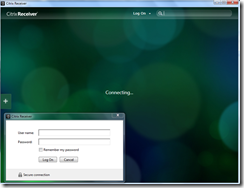
This is the standard Citrix Receiver without sign sing on when it opens the StoreFront store.
image

First you need to install the agent with the single sign on support (/includeSSON and ,SSON,) in the command line below.

Just as a note when installing this and removing this the ,USB item had to be last to stop errors occurring in installing and the installation failing.

Command line to install Receiver 4.1:

CitrixReceiver.exe /includeSSON ADDLOCAL="ReceiverInside,ICA_Client,SSON,AM,SELFSERVICE,DesktopViewer,Flash,Vd3d,usb" /Store0="sp;https://storefront.colvi.in/Citrix/desktops/discovery"

clip_image004

YOU NEED TO REBOOT, you need the SSOSVR.EXE to be running as seen below.

clip_image005

You need to make the changes to the GPO for the client (the desktop computer) to allow internet explorer to pass the logon credentials.

clip_image007

You need to install and configure Authentication with Domain Pass-through on the StoreFront Server.

YOU NEED TO BE USING HTTPS and a valid Cert.

clip_image009

You can see I have the receiver web site disabled, you can use it, but it is not needed for this configuration (in fact it does not support pass-through and this confuses people).

clip_image010

You need to configure the XML Policy on the Delivery Controller, this is the GPO, but it can also be via PowerShell.

clip_image012

You need your StoreFront server to be in ‘Local Intranet’ or ‘Trusted Sites’.

clip_image013

If your IE policy is locked down, delete these Registry Settings and then you can check (until next reboot).

HKLM\SOFTWARE\Policies\Microsoft\Internet Explorer

HKLM\SOFTWARE\Policies\Microsoft\Windows\CurrentVersion\Internet Settings

Check that “Automatic Logon with current user name and password” is enabled in local Intranet if that is what you are in (see above).

clip_image014

Check that “Automatic Logon with current user name and password” is enabled in Trusted Sites if that is what you are in (see above).

clip_image015

At this point if you start the receiver you will see the client automatically logs on and gets the desktop(s) as shown below.

clip_image017

If you want to automate further (you needed the self service plug installed, it is if you used my command line above), then you can it force do a logon, a refresh and then see the newly created .EXE dummy files that you can use to create shortcuts in the Start Menu (or Metro interface), yes Windows 8.1 using these commands in the back ground.

Here are the commands to force this:

"C:\Program Files\Citrix\SelfServicePlugin\SelfService.exe" -logon

"C:\Program Files\Citrix\SelfServicePlugin\SelfService.exe" -poll

dir C:\Users\ColvinDave\AppData\Roaming\Citrix\SelfService

clip_image019

If you want to you can make shortcuts to the EXE files, anywhere in the start menu, you cant copy just the .EXE files or you will get the error below.

clip_image021

Good luck and tell them Dave Sent You.

Friday, December 13, 2013

Finding Citrix StoreFront via Email Address


This is old news, and everyone should know this, but I have never found a site using it yet, so maybe someone wasn't paying attention in class, so here is how.


You must install a valid server certificate on the StoreFront before you start. Also the full chain to the root certificate must be valid.

  1. Create a DNS Service Location (SRV) record
  2. In DNS, Right-click your Forward Lookup Zone
  3. Click on Other New Records, Create a Service Location (SRV)
  4. Click in the Service box and enter the host value _citrixreceiver
  5. Click in the Protocol box and enter the value _tcp
  6. In the Host offering this service box, put the fully qualified domain name (FQDN) and port for your StoreFront

You can use nslookup to test this:

  1. Open command prompt, type nslookup
  2. Type “set type=srv”
  3. Type “_citrixreceiver._tcp.MyADdomain.com.au”
  4. The response should be :

_citrixreceiver._tcp.MyADdomain.com.au SRV service location:

priority = 0
weight = 100
port     = 443
svr hostname = StoreFront.MyADdomain.com.au

Sunday, November 10, 2013

Linux package management

apt-get

Really, you need these commands again? What, you have forgotten the obscure command lines to remove a simple package? Well you are bad and you should feel bad.
Personally I always forget these myself so I thought why not a quick and easy reference for apt-get package management. ‘apt-*’ : APT is acronym for Advanced Package Tool.
Do you like cows?
apt-get moo
Search on my local Linux box connected repositories for something cool
apt-cache search {something cool}
Install an application (from a currently connected repository)
apt-get install {package-name}
List applications that are installed on this
boxdpkg-query –l
or
apt-cache pkgnames | more
Once you know the name of the packages that offended you delete it with
apt-get remove --purge {package-name} [Dave here, note - - is 2 dashes)

If you have upgraded, updated or removed some packages run this to clean up the package cache
apt-get autoclean
If you are running out of space and don't need a cache of local apps, say for example you are connected to the internet, be a bit more ruthless. If you want to see how big it is first (du -sh /var/cache/apt/archives)
apt-get clean
If something is broken use the automatic fix command first
apt-get install –f
If you have not been on this box for while run this to update the lists, and versions of packages in the attached repositories
apt-get update
If you are feeling like you still miss Windows Update use this command
apt-get upgrade
Maybe you just need some extra details on a package in use on this computer
apt-cache show {package_name}


Great reference for this: https://help.ubuntu.com/community/AptGet/Howto


Friday, November 01, 2013

Citrix Universal Print Server/Driver


The Universal Print Server uses the Universal print driver, which is installed with the XenDesktop agents. It is so easy I cant believe everyone isn’t doing it.

The Universal Print Server transfers the print job in a highly optimised and compressed format, minimising network use and improving the user experience.

The Universal Print Server includes the following:

  • The client UPClient which is installed via the XenDesktop agent software
  • The UPServer which is a simple MSI install that accepts connections from the clients to the printers on the print server.

Generally in XenDesktop, it is recommended to use Universal print driver. The Universal print driver is a device-independent driver that supports MOST print device. This reduces the number of dedicated drivers required.

The Universal Print Server and Universal print driver have the following policies:

Universal printing optimization[sic] defaults. Specifies default settings for the Universal Printer when it is created for a session:

    • Desired image quality specifies the default image compression limit applied to universal printing.
    • Enable heavyweight compression enables or disables reducing bandwidth beyond the compression level set by Desired image quality, without losing image quality.
    • Image and Font Caching settings specify whether or not to cache images and fonts that appear multiple times in the print stream, ensuring each unique image or font is sent to the printer only once.
    • Allow non-administrators to modify these settings specifies whether or not users can change the default print optimisation settings within a session.
    • Universal printing image compression limit. Defines the maximum quality and the minimum compression level available for images printed with the Universal print driver.

Universal printing print quality limit. Specifies the maximum dots per inch (dpi) available for generating printed output in the session.

Tuesday, October 22, 2013

Windows RUNAS Command Restrictions


Understanding RunAs or ‘Run as different User’

http://technet.microsoft.com/en-us/library/cc771525.aspx

The command “runas /user:domain\user appName” or,

image

the use of SHIFT-Right-Click “Run as different User” from the context menu applications can be started with different user logons.

image

When you do either of these an authentication occurs and a new Windows process will be created with the specified user account. Unless defined, a temporary Windows profile will be loaded. This is not typical user logon process, so no GPO will be applied.

You can still restrict the RunAs / Run as different User function by removing the access to it.

There are two steps to remove the RunAs and Run as different User:

1. Restrict the access to runas.exe:
- Remove the user permission from C:\Windows\System32\runas.exe

2. The second step is to remove the Run as different User entry from the context menu. Delete the following registry keys
- HKEY_CLASSES_ROOT\exefile\shell\runasuser
- HKEY_CLASSES_ROOT\batfile\shell\runasuser
- HKEY_CLASSES_ROOT\cmdfile\shell\runasuser
- HKEY_CLASSES_ROOT\mscfile\shell\runasuser
- HKEY_CLASSES_ROOT\Msi.Package\shell\runasuser


Thanks to http://blogs.citrix.com/2013/10/15/the-almost-forgotten-hardening-runas-run-as-different-user for this information

Tuesday, September 03, 2013

Citrix StoreFront v2 password expiry notice


You can enable the Receiver for Web site users to change their passwords at any time. Users passwords that are about to expire are shown a warning when they log on.

The notification period is determined by the Windows Group Policy setting. To set a custom notification period for all users, you edit the configuration file for the authentication service.

  1. On the StoreFront server, use a text editor to open the web.config file for the authentication service, in the C:\inetpub\wwwroot\Citrix\Authentication\ directory.
  2. Locate the following element in the file.
    <explicitBL ... allowUserPasswordChange="Always"
    showPasswordExpiryWarning="Windows" passwordExpiryWarningPeriod="10" ... >


  3. Ensure that the allowUserPasswordChange attribute is set to Always to enable password expiry notifications.


    Change the value of the showPasswordExpiryWarning attribute to Custom to apply a specific password expiry notification period to all users.


    Use the passwordExpiryWarningPeriod attribute to set the password expiry notification period in days.


Receiver for Web site users connecting from the local network whose passwords are due to expire within the specified time period are shown a warning when they log on.


Copy configuration changes you make on the primary server are propagated to the the other servers.


This information comes from here:


http://support.citrix.com/proddocs/topic/dws-storefront-20/dws-configure-conf-password.html

Blog Archive